Windows driver & device diagnosticsv0.4.24Released

Blackwire Driver & Device Repair — Diagnose Windows Driver & Device Problems

Blackwire Driver & Device Repair shows you what Windows knows about a device before you start uninstalling drivers or trying random fixes.

Scan the system, find missing or broken devices, inspect the driver that is actually in use, and choose a repair action with the important device details still in front of you.

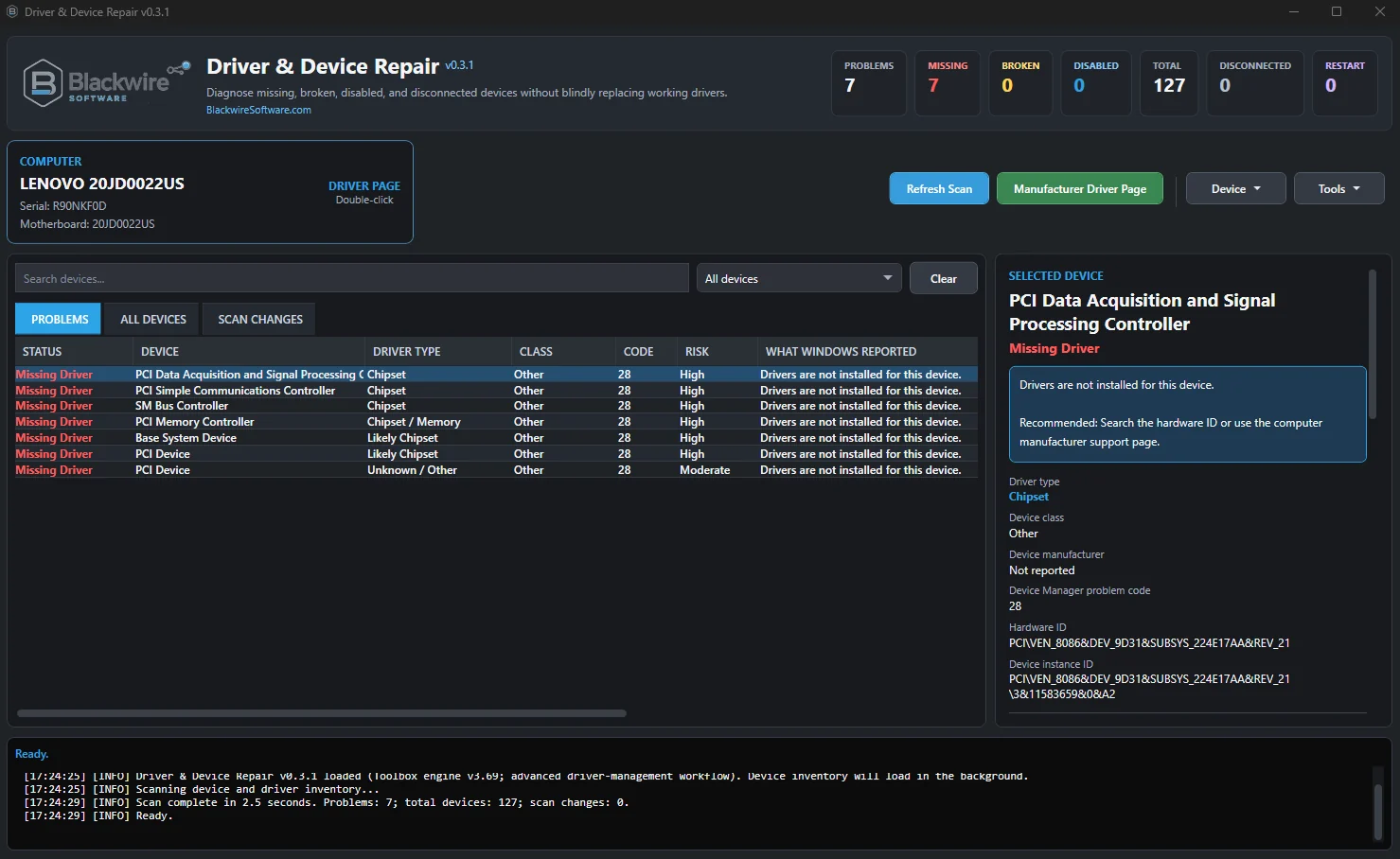
Blackwire Driver and Device Repair showing device inventory, missing drivers, repair risk, and guarded repair actions
Device inventory with repair-risk guidance and guarded actions.
DiagnoseSee what Windows is actually reporting about the device and driver
ProtectBack up the current driver before higher-impact changes when supported
RepairUse Windows-native repair tools instead of mystery driver packs
VerifyRescan the device and check what actually changed

The Blackwire approach

Fix the problem, not a version number.

A newer driver is not always the right driver, and a healthy device does not need to be changed just because another package exists.

Find the problem → inspect the evidence → choose the repair → back up when needed → make the change → check the result.

Capabilities

Everything you need to work the problem.

Device diagnostics, repair actions, driver backup, Driver Store tools, rollback, event evidence, package inspection, and reporting are kept together in one Windows app.

Device and driver analysis

  • Scan Windows devices and the drivers they are actually using
  • Find missing, disabled, disconnected, ghost, and problem devices
  • Show Device Manager problem codes and restart-required conditions
  • Show driver provider, version, date, INF package, service, class, Hardware IDs, Compatible IDs, and device instance ID
  • Show driver signature information
  • Explain common Device Manager errors in plain language
  • Suggest next steps based on the problem Windows reports
  • Group and filter devices by type, status, driver, and repair risk
  • Search exact Hardware IDs
  • Open official manufacturer driver and support pages

Repair and driver operations

  • Enable, restart, disable, or uninstall supported devices
  • Remove appropriate disconnected or ghost devices
  • Run a real Plug and Play rescan, similar to Device Manager's Scan for hardware changes
  • Back up the selected driver or installed third-party drivers
  • Inspect a local INF package before installing it
  • Check whether a selected driver package actually matches the device Hardware ID
  • Review driver signature and publisher information
  • Install a technician-selected local driver using Windows-native methods
  • Inspect and back up installed Driver Store packages
  • Remove eligible unused Driver Store packages with safeguards

Rollback, evidence, and reporting

  • Find locally available rollback driver candidates
  • Attempt a guarded rollback when Windows has a usable candidate
  • Read relevant Windows driver events and SetupAPI information
  • Compare the device before and after a repair
  • Keep scan history so device and driver changes are easier to spot
  • Assist with advanced test-signed and temporary unsigned-driver testing without silently changing Windows security settings
  • Generate HTML, TXT, and CSV reports
  • Keep detailed diagnostic and repair logs

What it looks like

See the actual interface.

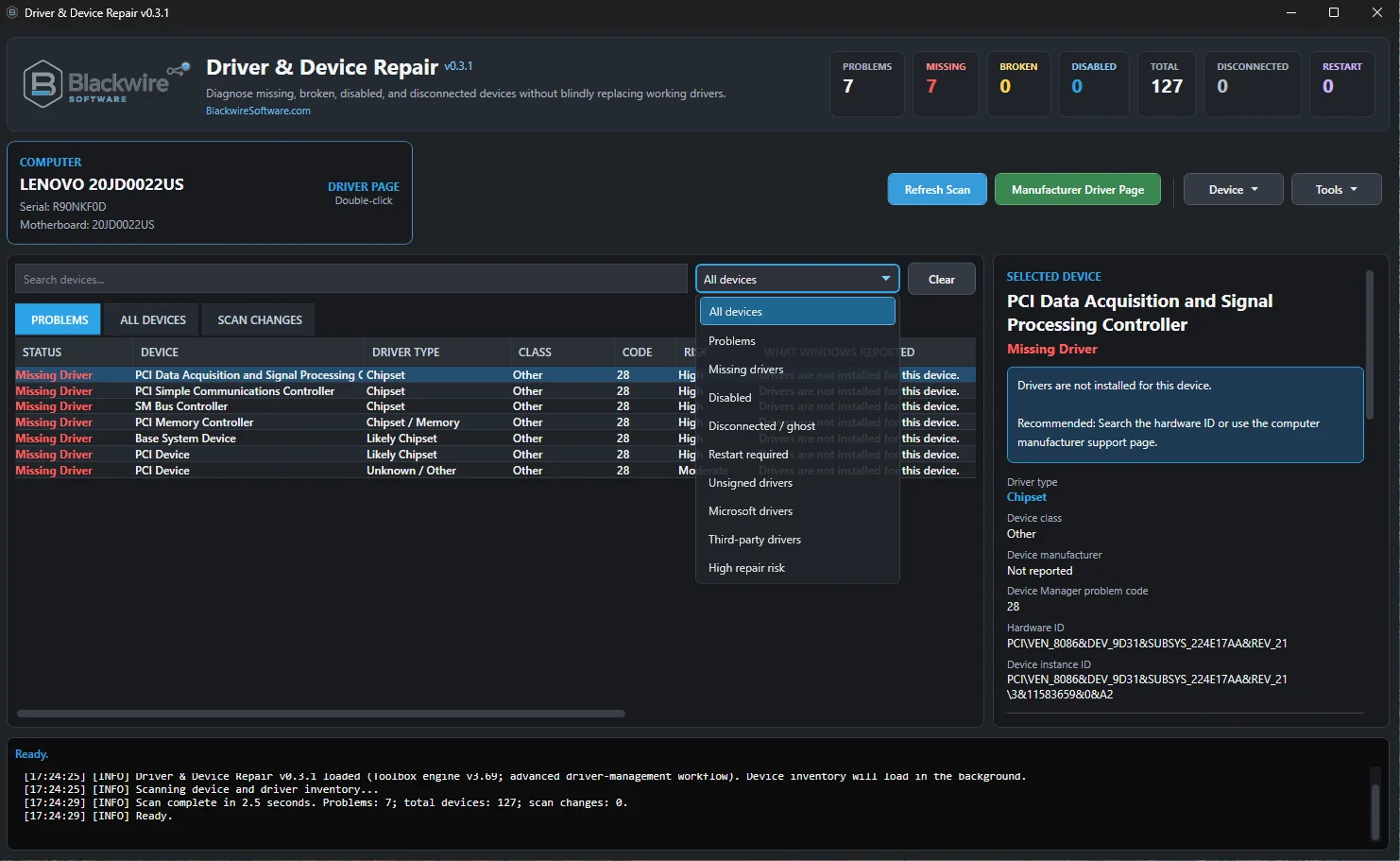
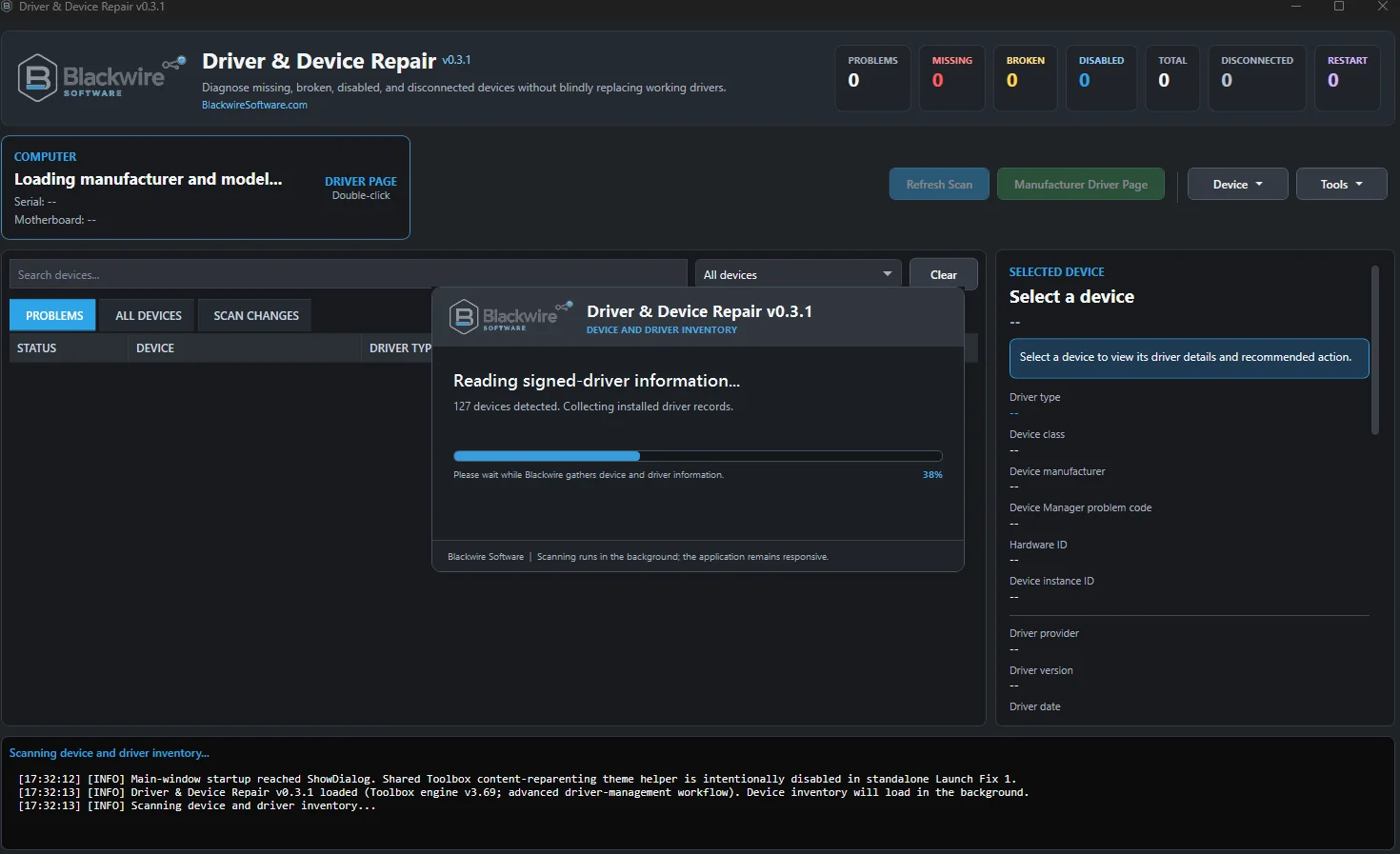
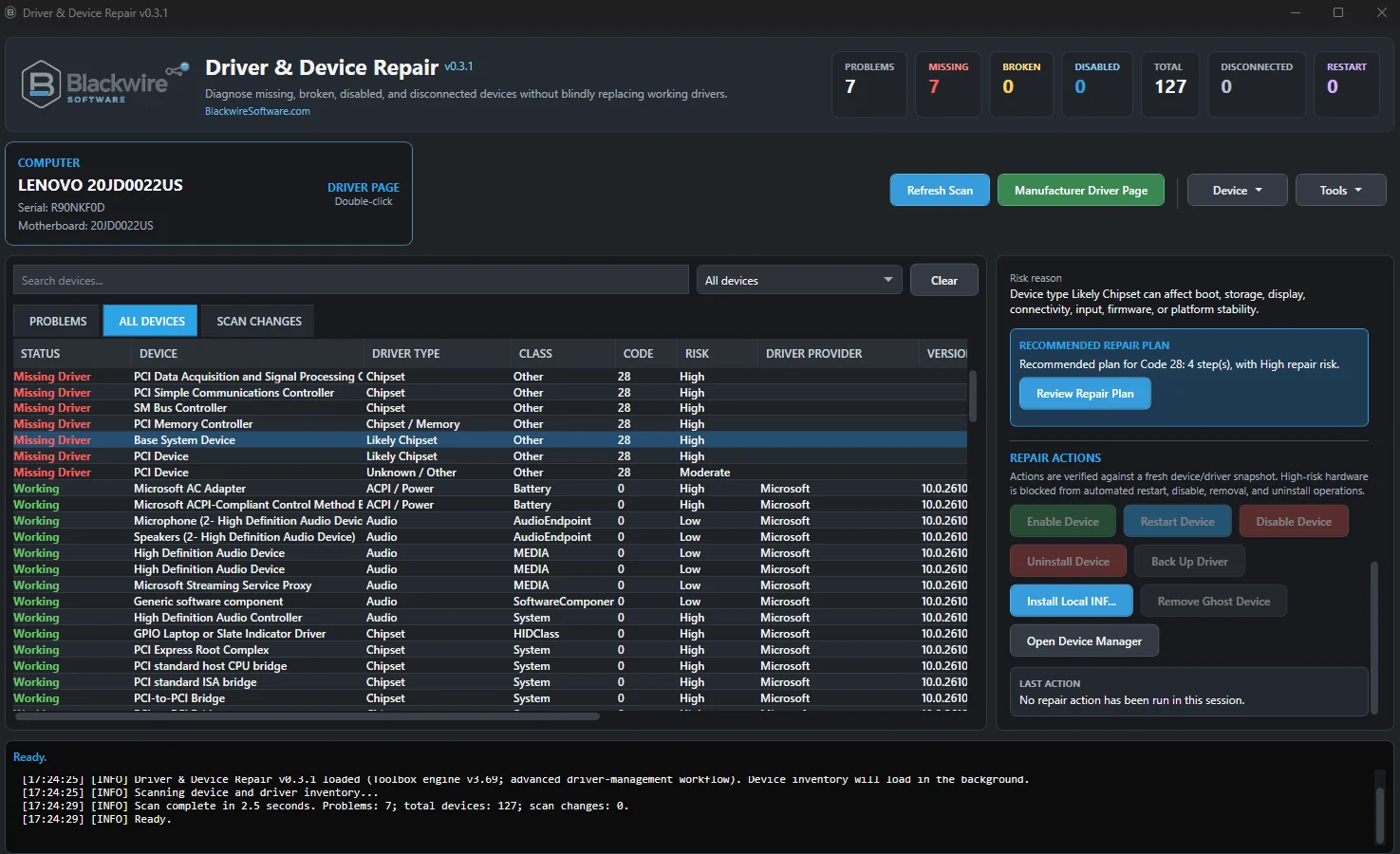
These screenshots show the device inventory, problem views, filters, repair-risk guidance, recommended actions, and background scanning you work with in the app.

Screenshot notice: These screenshots are from the current build. Small interface details may change between versions.

Blackwire Driver and Device Repair Problems view showing missing drivers and Device Manager problem codes
Problems view with missing-driver and Device Manager evidence.
Blackwire Driver and Device Repair device filter menu with problem, driver, and repair-risk filters
Search and filtering for large device inventories.
Blackwire Driver and Device Repair scanning signed-driver information in the background
Background scan collecting device and signed-driver information.

Built-in safeguards

Some devices deserve a lot more caution.

Uninstalling a Bluetooth adapter is one thing. Touching a storage controller or boot-critical device is another. Driver & Device Repair raises the guardrails when a change could affect booting, storage, input, networking, firmware, or platform security.

Examples of higher-risk hardware

  • Storage controllers
  • RAID controllers
  • NVMe controllers
  • SATA/AHCI controllers
  • Display adapters
  • Active network adapters
  • USB host controllers
  • Keyboard and mouse devices
  • Firmware
  • ACPI devices
  • Chipset/system devices
  • TPM and security processors
  • Boot-critical devices

What the app may recommend instead

When an automatic action would carry too much risk, the better next step may be:

  • Driver backup
  • Official manufacturer support
  • Device Manager
  • Restart guidance
  • Manual technician intervention

Check the result

Did Windows actually fix the device?

A Windows repair command can finish successfully while the device is still broken, still using the same driver, or simply waiting for a restart. After an action, the app rescans the device and checks what actually changed.

What it checks

  • Device Manager problem code
  • Device state
  • Driver version
  • Driver provider
  • INF package
  • Device presence
  • Restart requirement

How the result is reported

  • Completed
  • Completed with Warnings
  • Restart Required
  • Failed
  • Cancelled

If Windows still shows a problem, the app says so. It does not call the repair successful just because the command ran.

What it won't do

No mystery drivers. No silent security changes.

This is a repair tool, not a “27 drivers are out of date” updater. It will not grab random driver packages, quietly weaken Windows security, or pretend software can fix failed hardware.

No driver-updater nonsense

  • No third-party driver packs or random driver-download sites
  • No replacing a healthy OEM driver just because another version is newer
  • No assumption that the newest driver is automatically the best driver
  • No silent installation of a package that does not match the selected hardware
  • No unattended destructive actions on protected high-risk devices

No silent security changes or fake guarantees

  • Does not silently bypass Windows driver-signature enforcement
  • Does not patch Windows to bypass kernel security
  • Does not silently disable Secure Boot, BitLocker, or Memory Integrity/HVCI
  • Does not promise that every device problem can be fixed in software
  • Does not pretend to repair physically failed hardware
  • Does not replace motherboard, electrical, firmware, or component-level troubleshooting when the hardware itself is the problem

Hardware limitation: If the device itself has failed, changing the driver is not going to fix the hardware.

Who it is for

Built for people who troubleshoot Windows hardware.

Computer Repair Technicians

Keep device details, driver backup, repair actions, Driver Store tools, rollback, event evidence, Hardware ID lookup, and reports in one place.

IT Professionals

Investigate failed driver deployments, blocked drivers, unusual device states, and systems that started having trouble after a driver change.

PC Builders and Enthusiasts

Track down chipset, graphics, network, Bluetooth, audio, storage, USB, firmware, and other device-driver problems on a new or upgraded system.

Advanced Home Users

Get understandable device information and controlled repair options without installing an aggressive third-party driver updater.

Legacy and Specialized Hardware Users

Work with older peripherals, industrial equipment, development hardware, specialty adapters, and unusual or test-signed driver packages.

Pricing

The whole app is free.

There is no cut-down Free edition. The optional $5 Support checkout gives you the same app and is simply there for people who want to help fund continued development.

Free

Free

$0

You get the complete Driver & Device Repair app.

Nothing on this page is locked behind the Support option.

Checkout is handled through the Blackwire Lemon Squeezy storefront. Both options provide the same application.

FeatureFreeSupport
Device and driver scanningYesYes
Problem detectionYesYes
Repair recommendationsYesYes
Device repair actionsYesYes
Driver backupYesYes
Local INF installationYesYes
Driver Store ManagerYesYes
Driver Rollback CenterYesYes
Driver event analysisYesYes
Test/unsigned driver assistantYesYes
Reports and logsYesYes
All current functionalityYesYes
Supports continued Blackwire developmentNoYes

There is no feature difference between Free and Support. Pick Free if you just want the tool. Pick Support if you also want to help fund it.

The optional $5 Support payment is a support contribution and does not unlock additional features. Support contributions are final except where required by law or the payment provider. See the Refund Policy.

Why it's free

Useful repair tools shouldn't be paywalled.

You should not have to pay just to identify a missing driver, understand a Device Manager problem, back up a driver, or repair a disabled device.

If the app helps you and you want to support the work behind it, the optional $5 Support checkout is there for that.

What makes it different

See what Windows says before you touch the driver.

The app uses Windows evidence, exact Hardware IDs, official manufacturer support, and guarded repair actions instead of a third-party driver database.

Make the change you intended, rescan the device, and see whether the problem actually improved.

Download

Get Blackwire Driver & Device Repair.

Free and Support are the same application. Pick the option that makes sense for you.