Bootable x64 UEFIRuns outside Windowsv1.5.05Free + Home available

Test the hardware before blaming Windows.

Blackwire Hardware Diagnostics boots directly through UEFI so home users, builders, technicians, and IT professionals can test supported PC hardware without depending on Windows, installed drivers, startup files, or the condition of the operating system. The initial public release is available with Free Personal and Home license options.

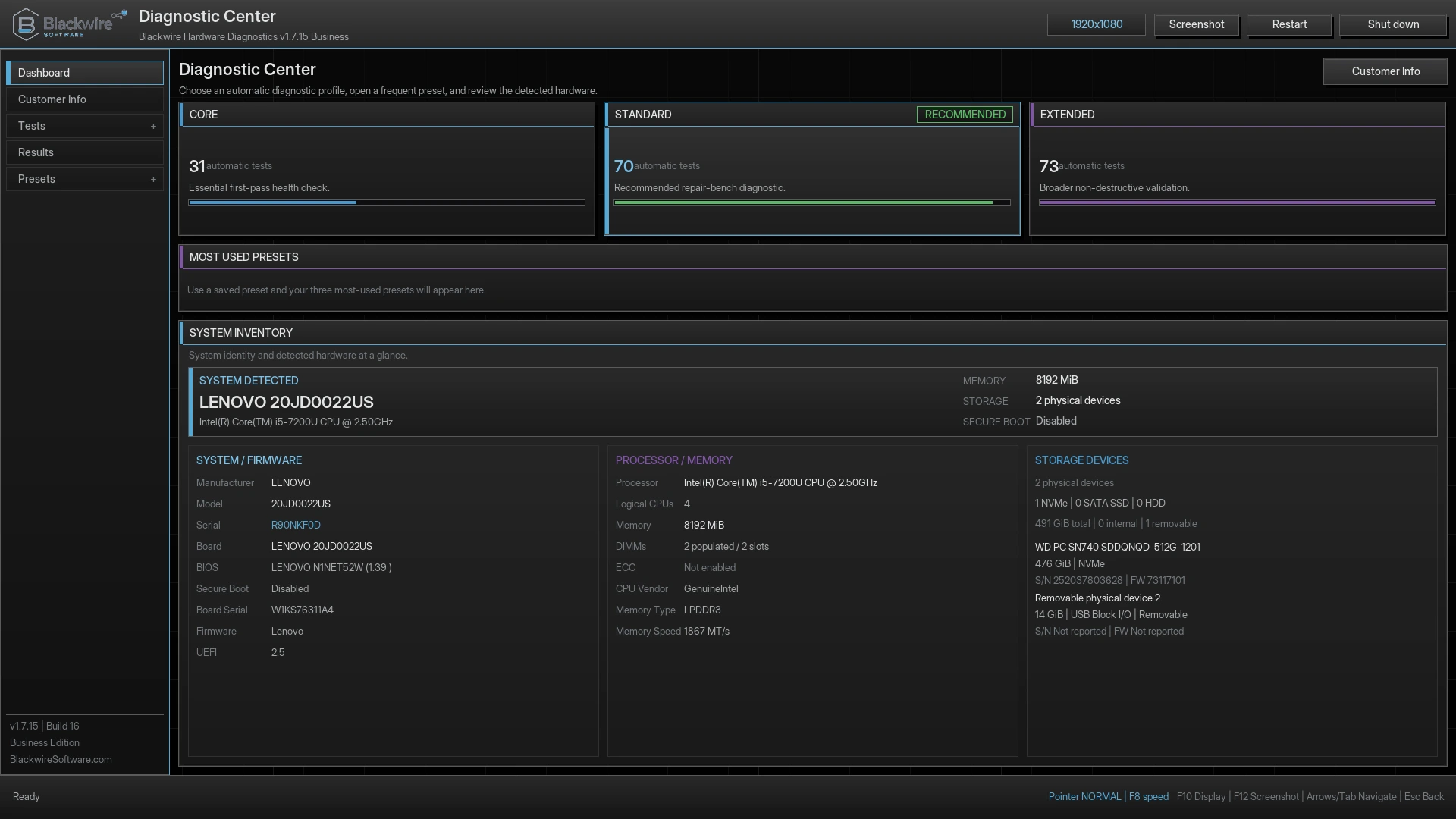
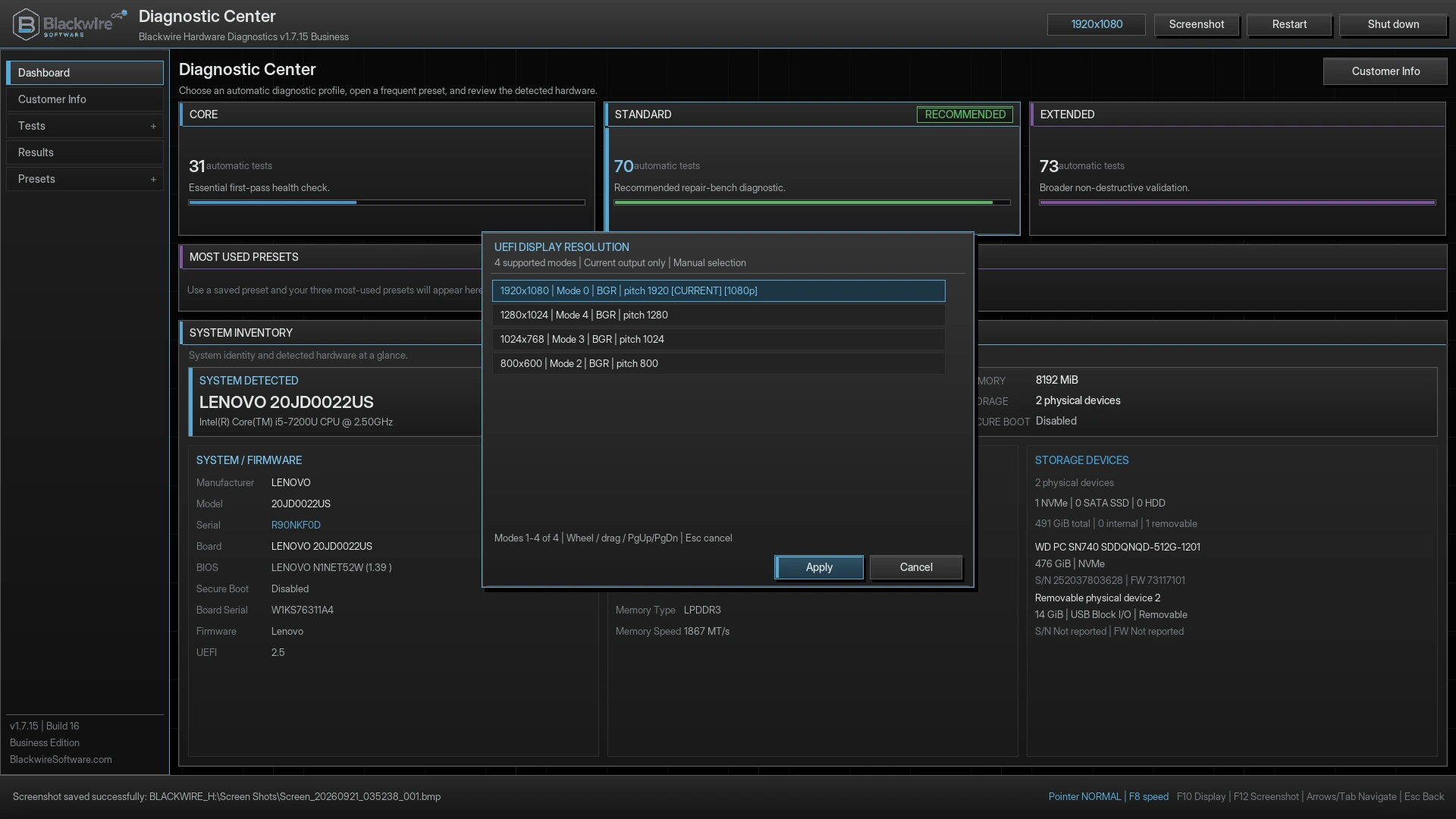
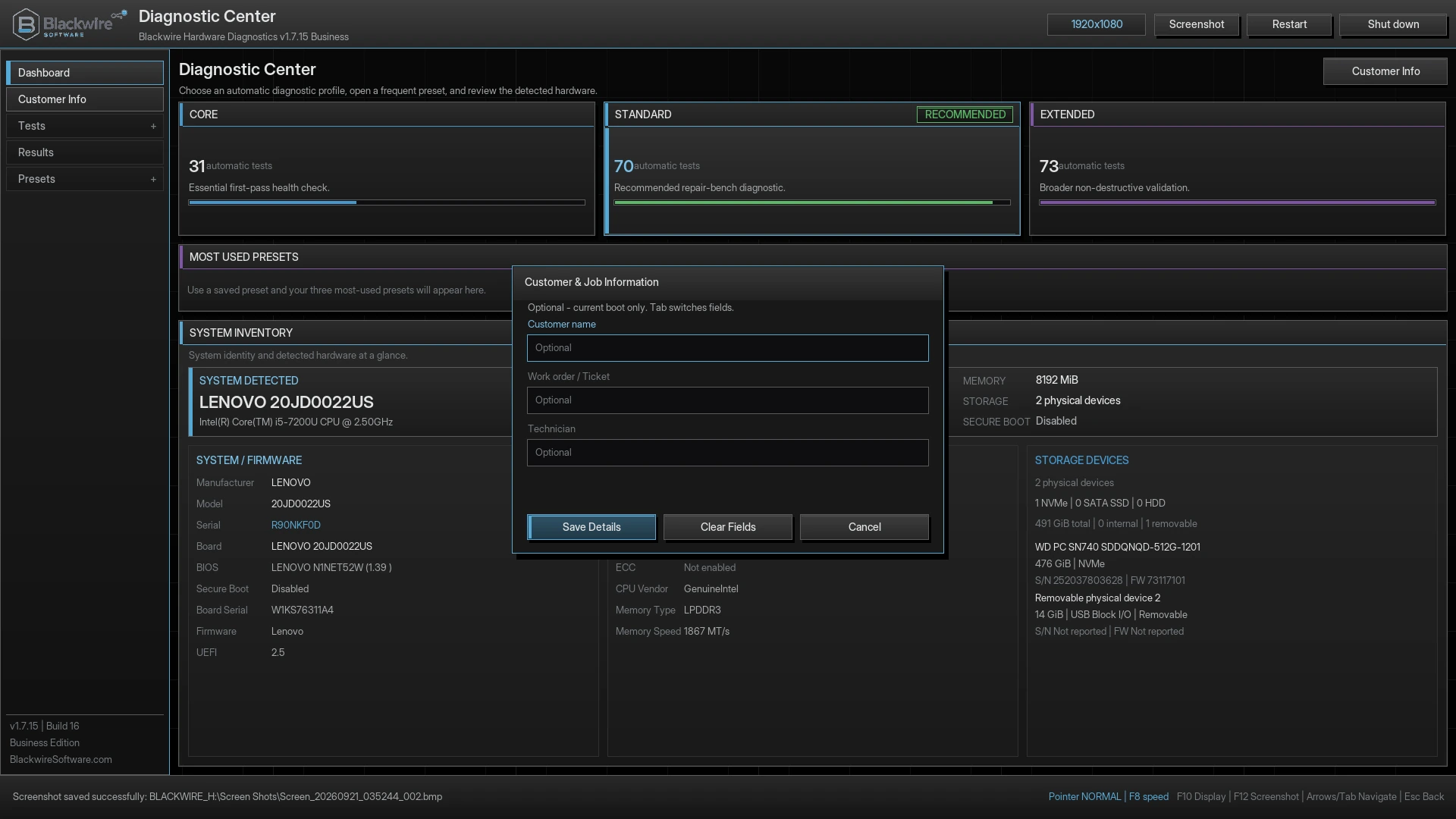
Blackwire Hardware Diagnostics UEFI dashboard showing hardware inventory and selectable diagnostic tests
Real UEFI dashboard with hardware inventory, test search, categories, profiles, presets, and saved report status.
Independent testingRuns before Windows or another installed OS
CPU, memory, and storageDeep supported hardware checks and stress workflows
Clear resultsPass, warning, fail, skipped, unsupported, and not tested
Professional reportsPDF, HTML, TXT, CSV, JSON, inventory, and logs

Licenses and editions

Start free, support development with Home, and grow into future professional tools.

The current application remains completely offline and does not require an account, subscription, online activation, or a network connection while testing.

F

Free Personal License

For personal, noncommercial use on computers owned by the user or household.

  • No-cost personal license
  • Offline UEFI hardware testing
  • No account or online activation
  • Provided as-is and with all faults
  • No warranty or guaranteed support
  • No guaranteed compatibility or fault detection
  • Secure Boot must currently be disabled
H

Home License

An affordable paid personal and household license that supports continued Blackwire development.

  • Personal and household use
  • Complete current offline diagnostic engine
  • Home-user manual and report guidance
  • Eligible v1.x updates
  • Product-use support as offered
  • No subscription or online activation
  • Secure Boot must currently be disabled
P

Professional — Coming Soon

Planned for independent technicians and commercial repair work.

  • Commercial technician licensing
  • Advanced and technician-focused tests
  • Expanded report and preset workflows
  • Professional support options
  • Planned Secure Boot-signed build after certificate approval
B

Business — Coming Soon

Planned for repair shops, IT departments, refurbishers, and multi-technician teams.

  • Business and multi-technician rights
  • Advanced test and deployment workflows
  • Expanded business reporting options
  • Organization-focused support
  • Planned Secure Boot certificate-backed releases
Free license notice: Blackwire Hardware Diagnostics Free is provided “as is” and “with all faults,” without warranty, guaranteed compatibility, guaranteed fault detection, or guaranteed technical support. A Pass means only that the completed test did not detect a fault during that run.

Important boot requirement

Secure Boot must be disabled before starting the current Free and Home releases.

Blackwire Hardware Diagnostics is a custom bootable UEFI application. Most computers will not start an unsigned or independently distributed UEFI diagnostic while Secure Boot is enabled. Disable Secure Boot temporarily, run the diagnostic, then enable it again after testing.

Strongly recommended: before changing Secure Boot, suspend BitLocker protection or turn off and decrypt Windows Device Encryption. Save and verify the recovery key first, even when protection has been suspended.

  • Strongly consider suspending BitLocker or decrypting Device Encryption before changing Secure Boot.
  • Save and verify the BitLocker or device-encryption recovery key.
  • Do not clear the TPM.
  • Do not delete Secure Boot keys.
  • Avoid changing unrelated BIOS or UEFI options.

Why boot outside Windows?

Test hardware even when Windows will not start correctly.

Testing from UEFI helps separate repeatable hardware faults from Windows corruption, driver problems, malware, failed updates, damaged startup files, or an operating system that cannot boot.

01

Crash and stability investigation

Investigate random freezes, blue screens, unexpected restarts, failed installations, file corruption, overheating, and unexplained crashes.

02

Build and upgrade verification

Check a newly built, upgraded, used, or refurbished computer before relying on it or returning it to a customer.

03

Home and professional workflows

Use guided profiles for a quick starting point or select individual tests, categories, and custom presets for deeper technical work.

Automatic profiles and presets

Start simple, then go deeper when needed.

Core, Standard, and Extended Test profiles provide progressively broader coverage. Built-in presets and Preset Builder make repeatable technician workflows easy to save and reuse.

ProfileBest forCoverageImportant note
Core TestFirst checks and common problemsFocused major hardware areasFastest starting point; does not run every deeper diagnostic
Standard TestCrashes, instability, RAM, and storage concernsBroader supported hardware coverageA practical general-purpose diagnostic pass
Extended TestIntermittent faults, used systems, repair verificationAdditional and longer supported testsLonger testing improves fault exposure but cannot guarantee every problem will be found

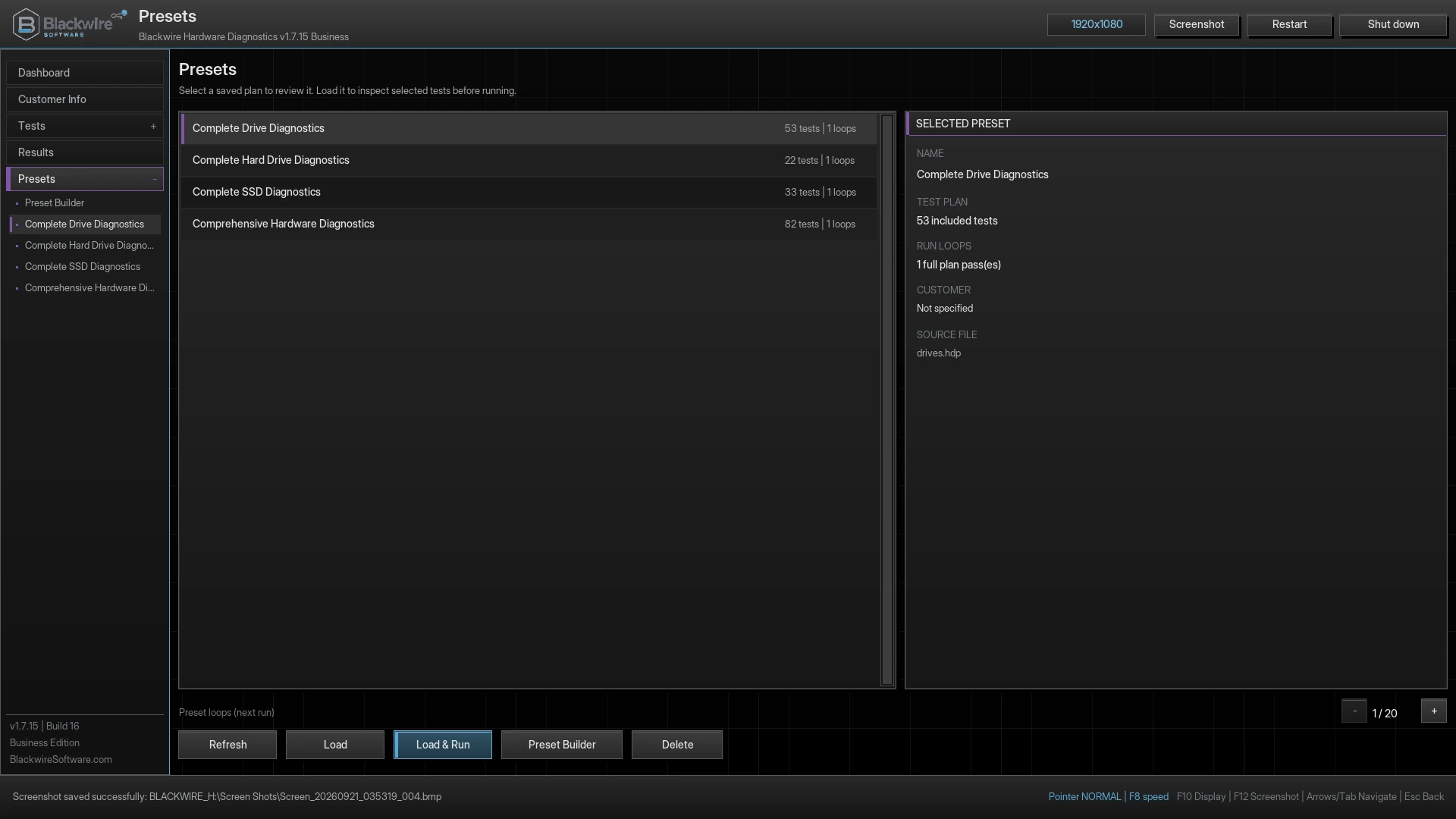
Built-in presets

  • Comprehensive Hardware Diagnostics
  • Complete Drive Diagnostics
  • Complete Hard Drive Diagnostics
  • Complete SSD Diagnostics
  • Create, save, load, and edit custom presets
  • Select All, Unselect All, category selection, and individual test selection

Preset Builder records which supported tests should run or be skipped. Restart-required Full Memory testing is scheduled separately when selected.

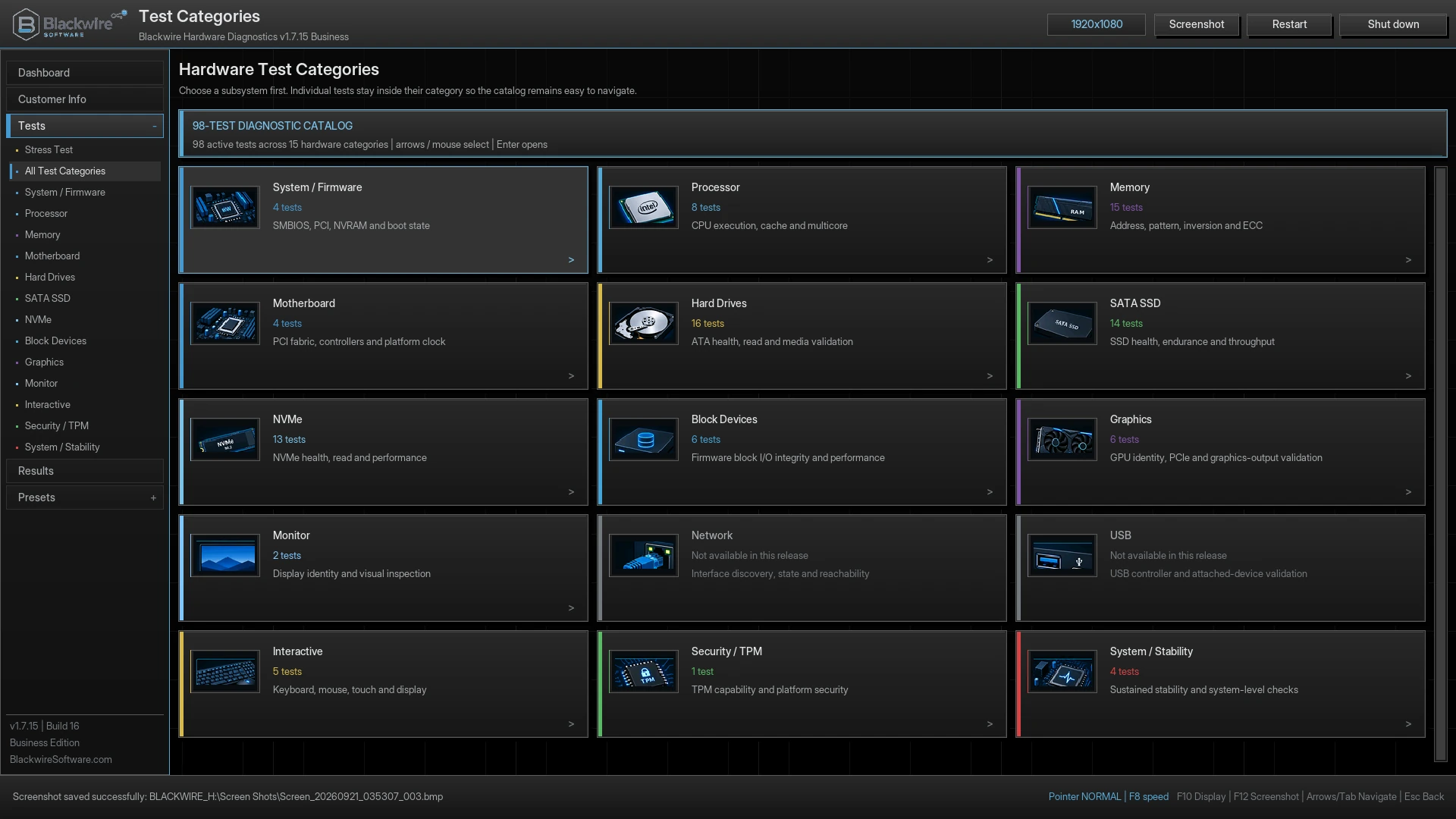
Blackwire Hardware Diagnostics Preset Builder with test categories and selected system information tests
Preset Builder with category counts, test descriptions, Select All, Unselect All, Run Plan, and Save Preset controls.

Diagnostic coverage

One bootable environment for major hardware areas.

Tests run only when the platform exposes the required hardware, protocol, service, sensor, or firmware interface. Unsupported or unavailable functions are reported honestly rather than treated as a pass.

S

System and firmware

UEFI environment, hardware inventory, SMBIOS, NVRAM, firmware services, timers, real-time clock, security devices, and platform consistency.

C

Processor

Identification, integer, floating-point, SIMD, multicore, timing, random-number instructions, sustained workload, temperature, and throttling observations where supported.

M

Memory

Address, pattern, coupling, boundary, unaligned-access, repeated traversal, composite verification, Full Memory scheduling, and ECC evidence where exposed.

D

Storage

Read-only identification, SMART and health data where available, self-tests, read consistency, distributed and linear scans, random and 4K reads, throughput, and timeouts.

G

Display

Graphics-output detection, modes, framebuffer access, color and pattern tests, tiled readback, display-memory patterns, and visual inspection.

I

Interactive tests

Keyboard, mouse movement and buttons, touch or touchpad where supported, speaker or tone tests, display inspection, and user confirmations.

E

Server ECC

ECC capability reporting, validation, corrected or uncorrected evidence where available, server inventory, long-duration stress options, and technical reports.

T

TPM and security

Presence, accessibility, basic information, firmware security-device status, and repeated consistency reads. The application does not clear the TPM or delete keys.

Storage testing is designed to be read-only. Normal diagnostic tests do not intentionally erase, overwrite, format, partition, repair, or modify user files. Back up important data because already-failing hardware, unstable controllers, power loss, or existing filesystem damage can still cause data loss during any investigation.

Dedicated stress test

Apply sustained CPU and memory load with live activity graphs.

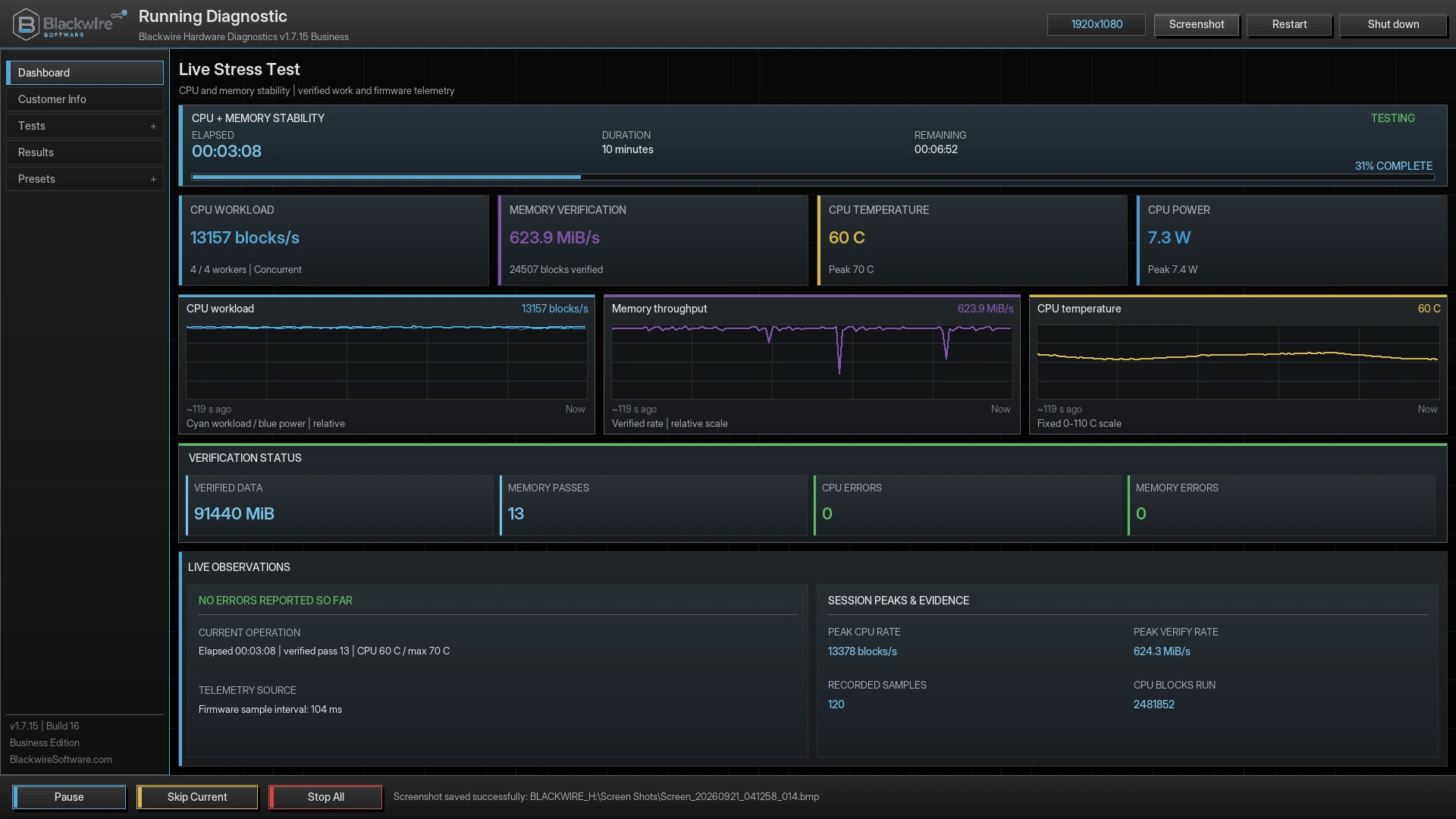
Choose a timed run or continuous mode for difficult intermittent problems. The Stress Test tracks CPU workload, memory-pattern throughput, available power information, temperature where supported, elapsed time, passes, and confirmed faults.

  • CPU and memory workload
  • Timed and continuous modes
  • Live progress and stability monitoring
  • Temperature and thermal observations
  • Stress-Test-only graphs
  • Technician-controlled stop and preserved failures
Use adequate cooling and supervision. Fans may become loud and laptops should remain connected to reliable power. Stop immediately for smoke, a burning smell, abnormal noise, unsafe temperature, battery swelling, or other physical danger.
Blackwire Hardware Diagnostics live CPU and memory stress test with workload, memory throughput, and temperature graphs
Live Stress Test showing CPU activity, memory throughput, temperature, passes, elapsed time, and fault status.

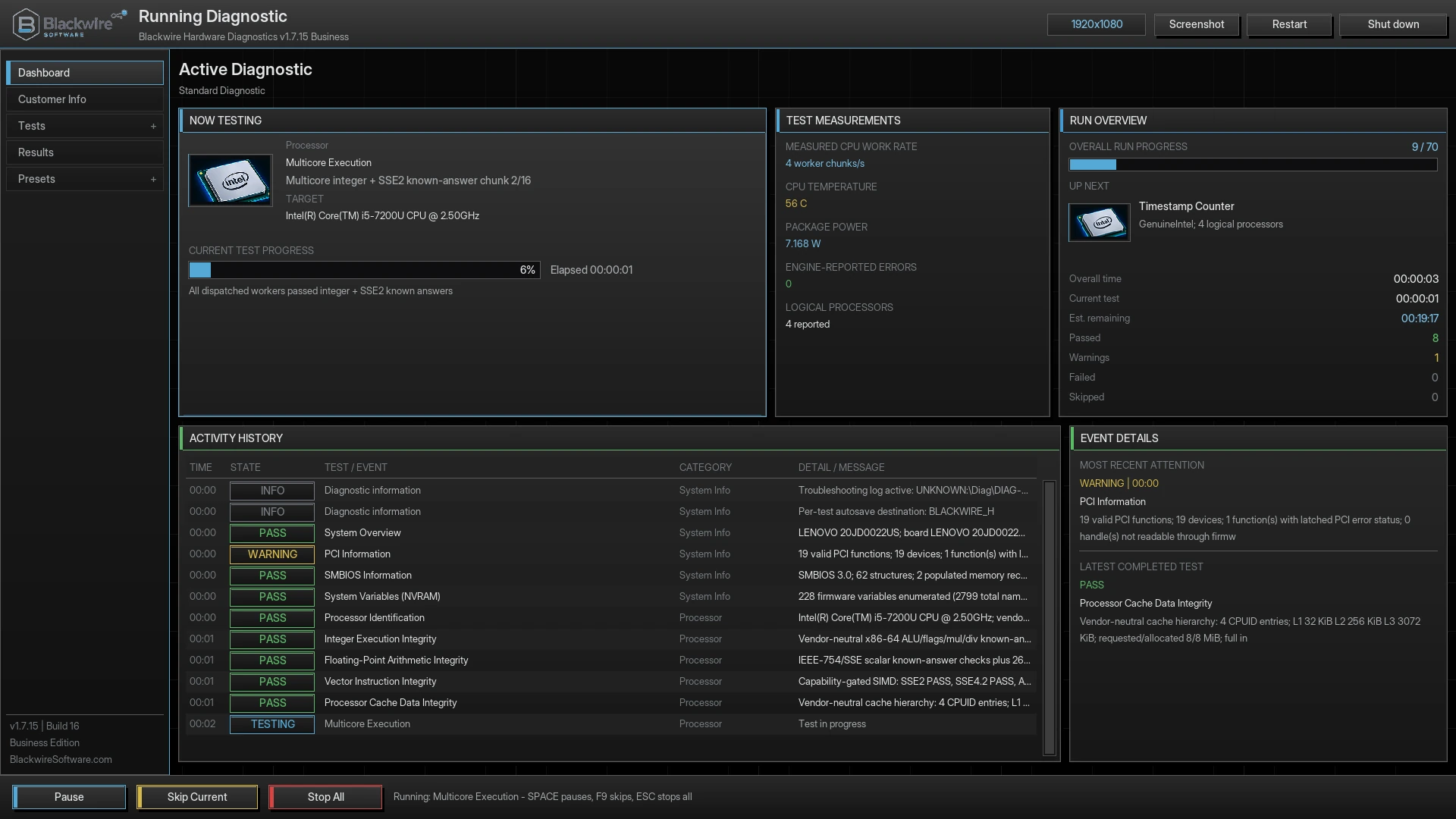
Run controls and progress

See exactly what is running and what comes next.

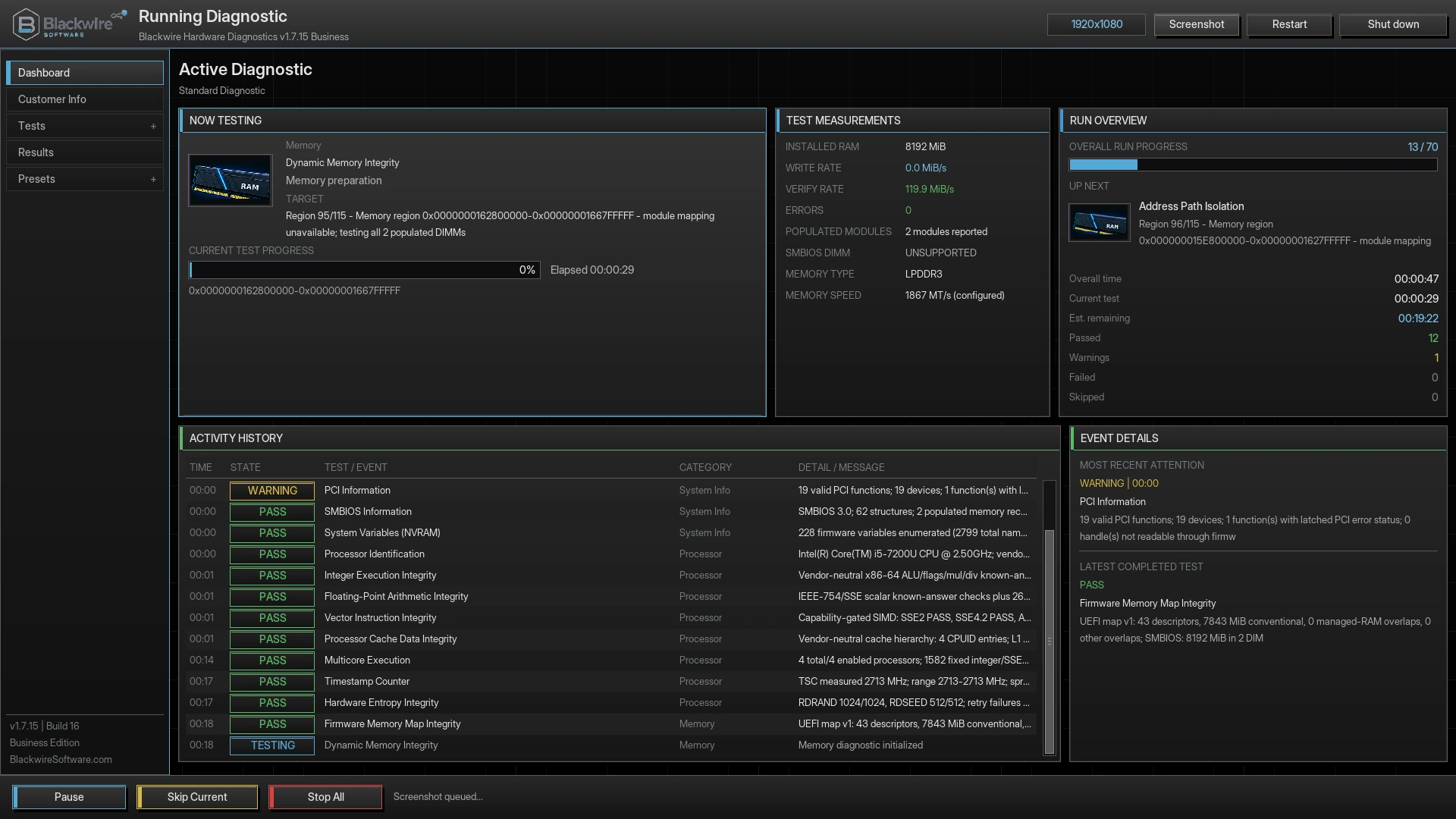
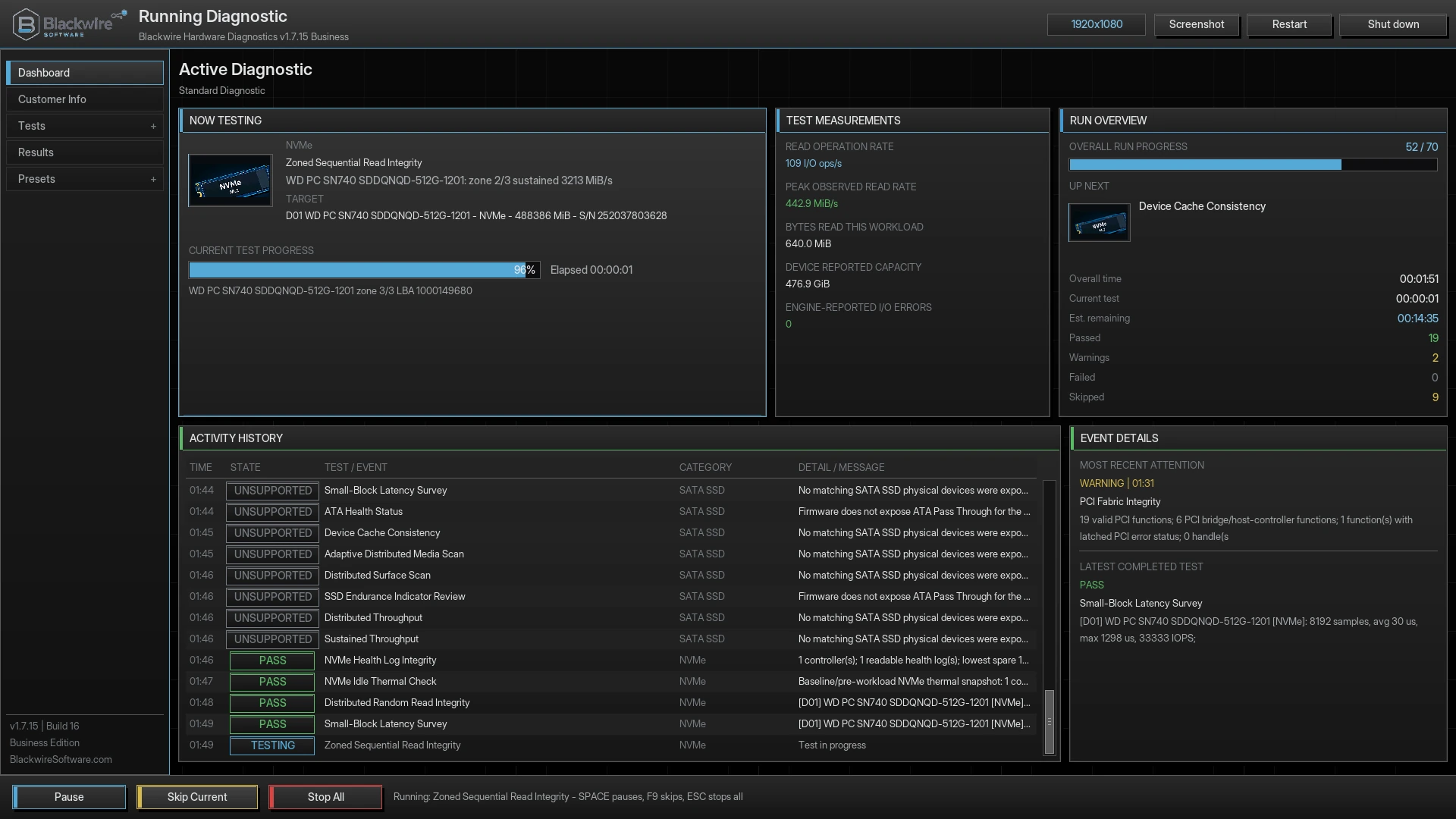
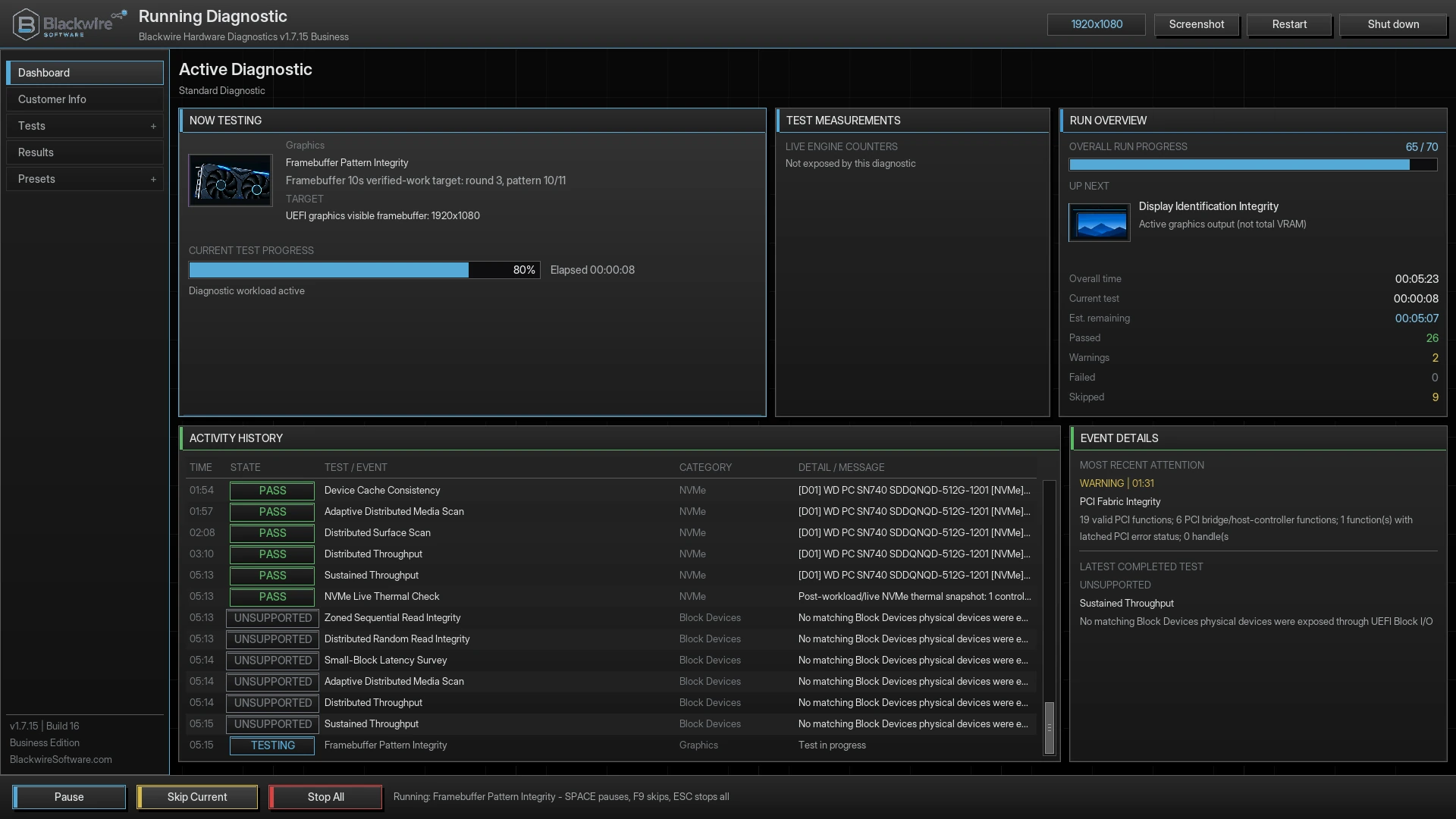
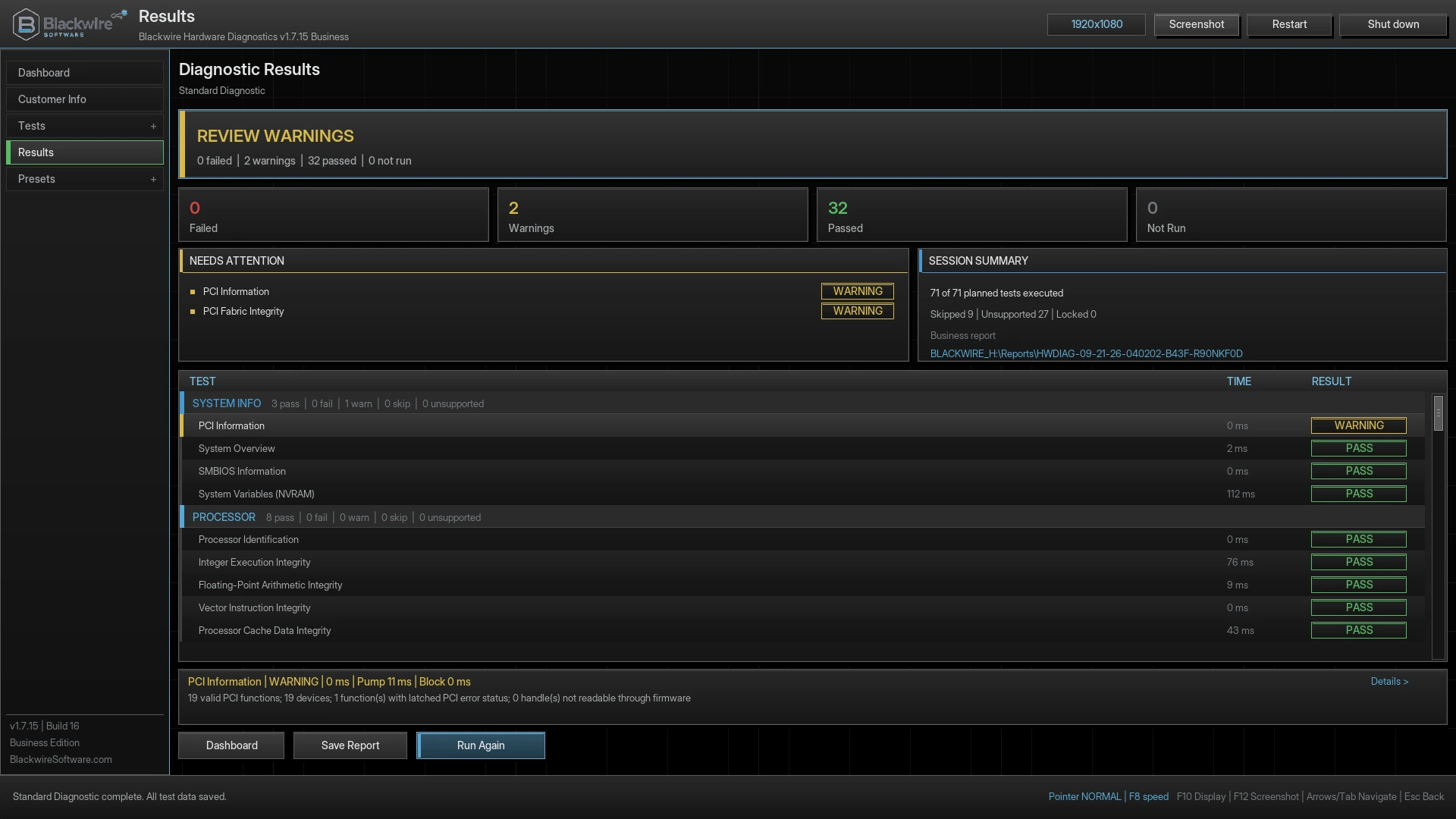
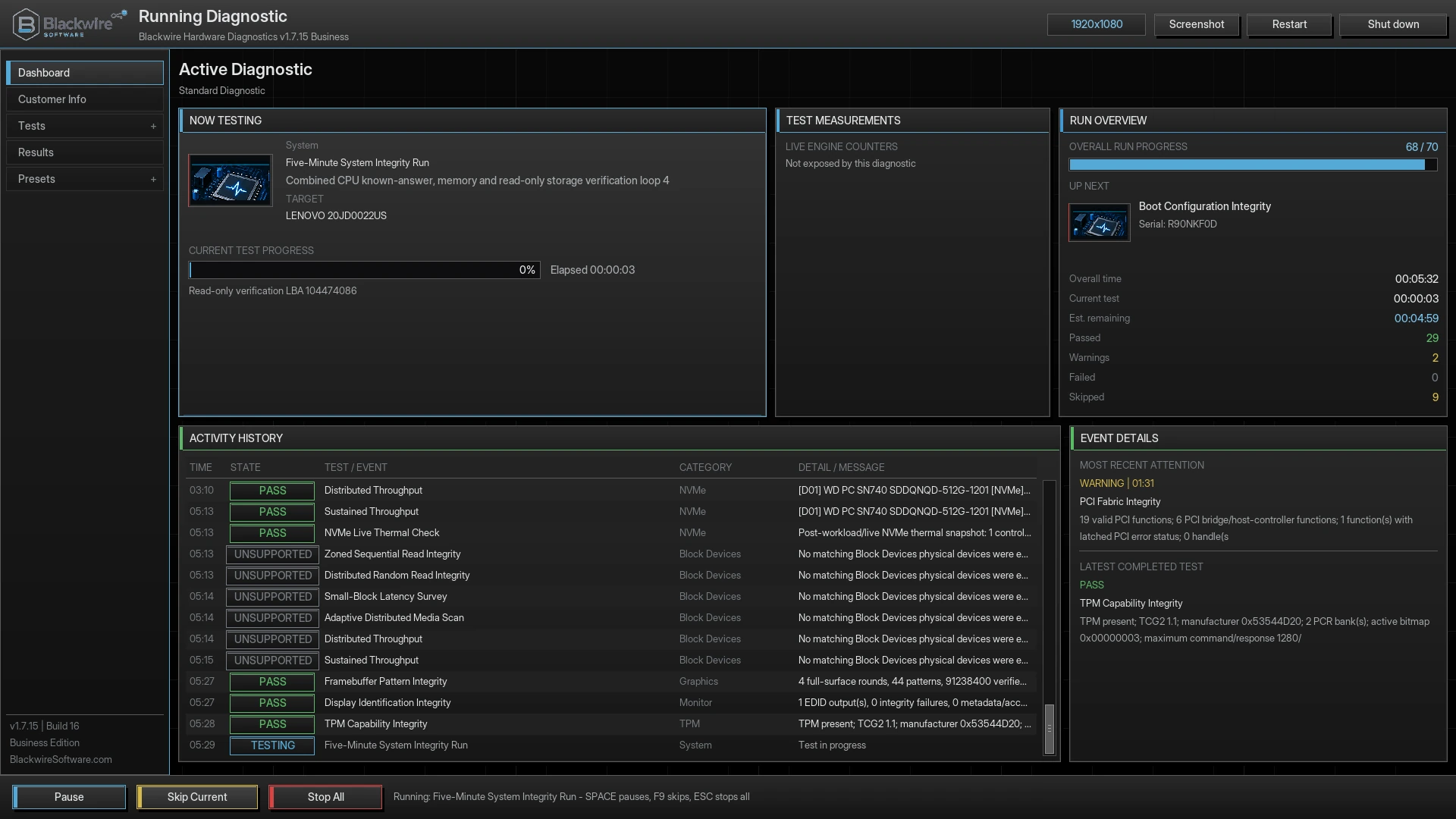
The active diagnostic window shows the current item, next item, current-test progress, overall progress, elapsed time, estimated time, autosave checkpoints, errors, and Pause, Skip, and Stop controls.

Results and reports

Customer-friendly summaries with technician-level evidence.

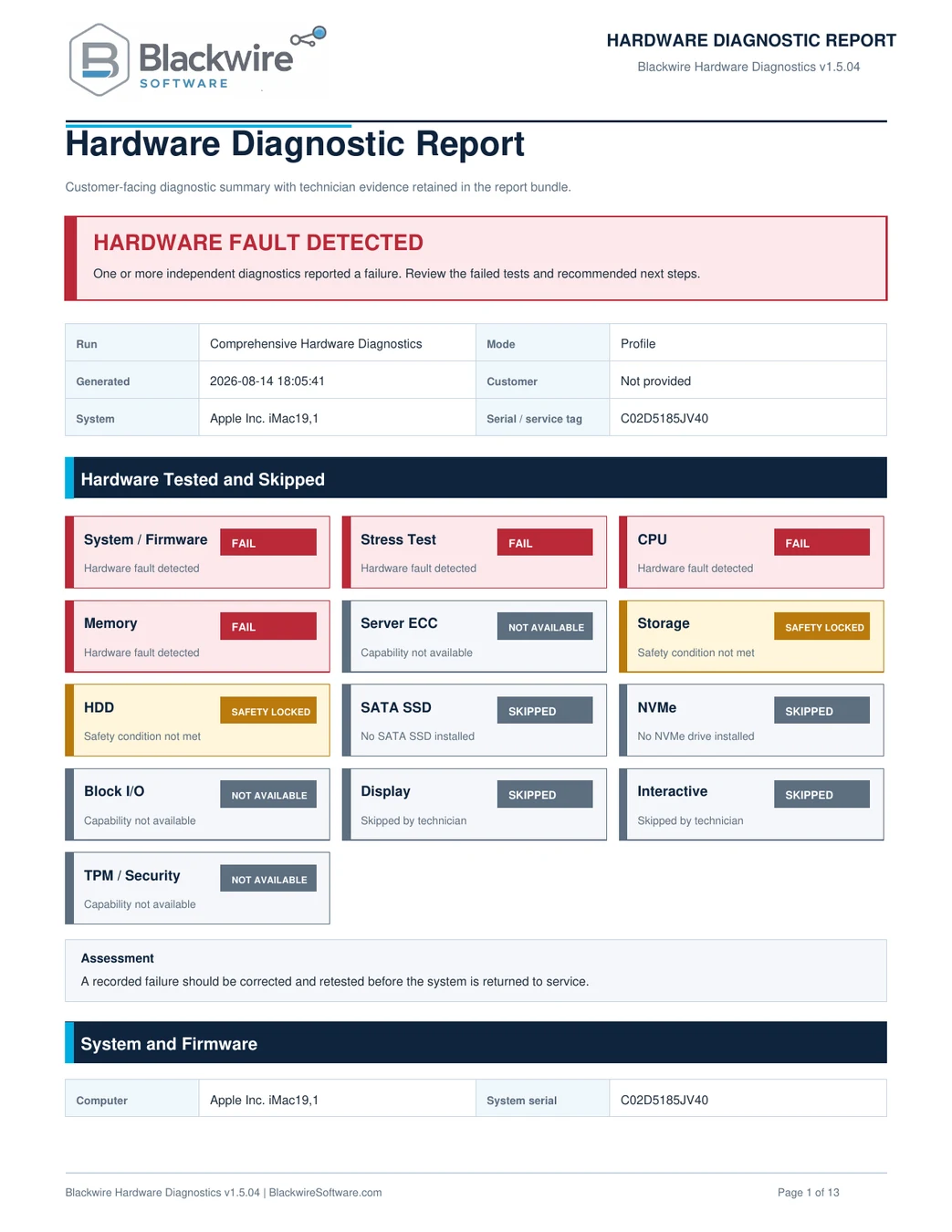
Autosave checkpoints begin before testing and continue after tests. A final report bundle can include printable and machine-readable formats for customers, repair records, troubleshooting, and technical review.

PDF

Professional US Letter report for home users, customers, repair records, printing, and easy sharing.

HTML

Self-contained browser report that opens without an internet connection.

TXT, CSV, and JSON

Detailed evidence for technicians, advanced troubleshooting, data review, and importing results into other systems.

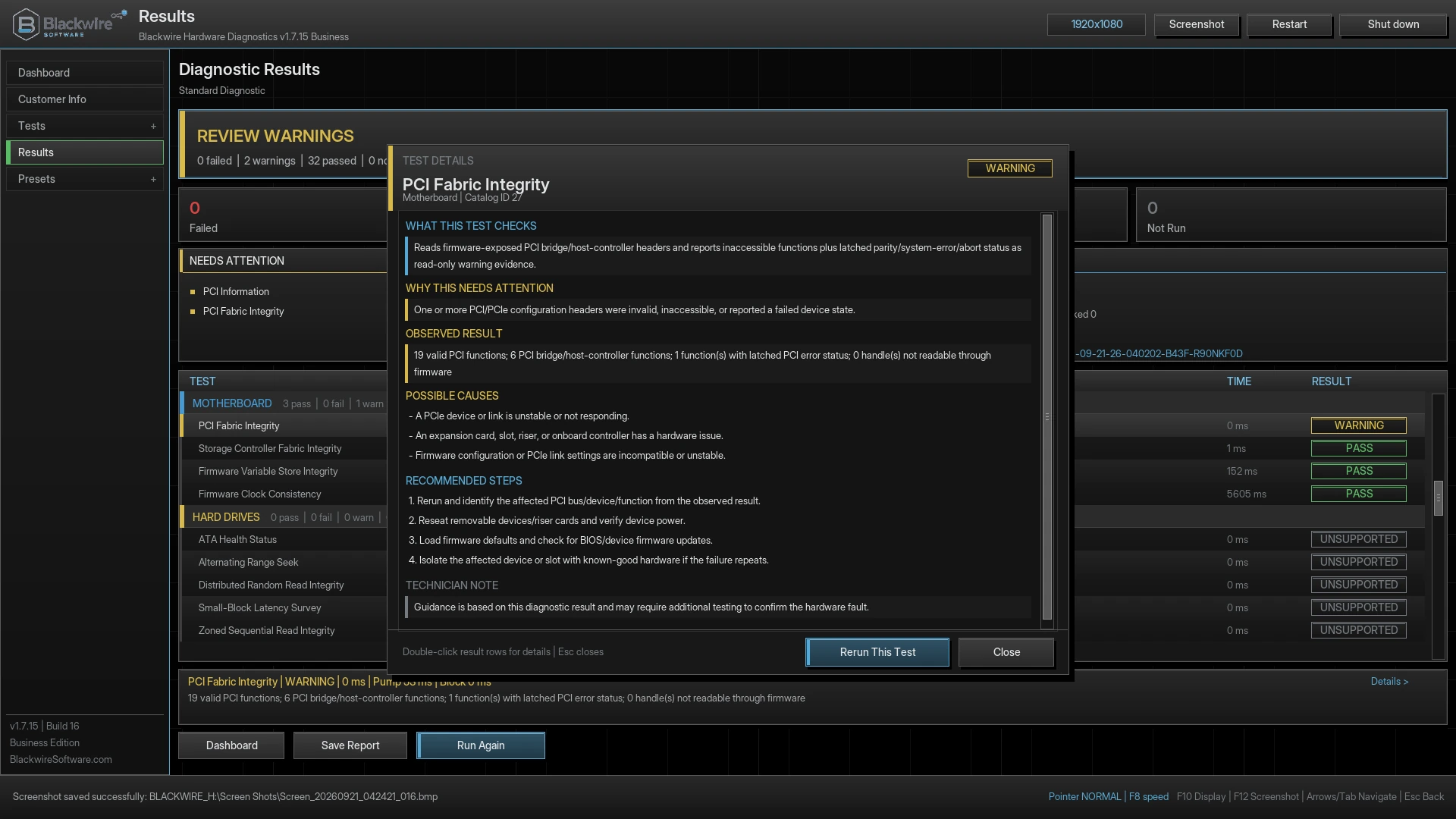
Understand the result

A clear status without pretending hardware testing is absolute.

A Pass means the specific test did not detect a fault during that run. It is not a guarantee that a component is perfect or that an intermittent problem cannot appear later.

PassNo fault was detected in the area checked during this run.
Warning / ReviewThe test completed but found something that should be reviewed.
FailIncorrect data, instability, timeout, or another condition met the test's failure rules.
SkippedThe user, preset, or plan intentionally skipped the test, or a device was not present.
Unsupported / LockedThe required feature, interface, information, or access was not available.
Not Tested / StoppedNo applicable test completed, or the run ended before completion.

Boot options and requirements

Use a bootable USB, UEFI ISO, or standalone EFI file.

No Windows installation is required on the computer being tested. The target system must provide compatible 64-bit UEFI firmware and Secure Boot must be disabled before launch.

Available distribution formats

  • Raw USB image for creating a bootable diagnostic drive
  • Bootable UEFI ISO
  • Standalone BOOTX64.EFI
  • Complete project or deployment package
  • SHA-256 checksums
  • PDF user manual and example reports

System requirements

  • 64-bit x86 computer with UEFI firmware
  • Secure Boot disabled for the current Free and Home releases
  • USB boot support or compatible UEFI ISO boot
  • Keyboard; mouse recommended
  • UEFI Graphics Output Protocol display recommended
  • Writable USB or supported filesystem for reports and screenshots
  • Sufficient RAM for selected memory tests
  • Supported interfaces for device-specific diagnostics

Legacy-BIOS-only computers are not supported unless they also provide a compatible 64-bit UEFI boot mode. Secure Boot-signed Professional and Business models are planned after certificate and signing approval.

Home-user quick start

From download to results.

  1. Back up important files.Hardware testing is normally non-destructive, but failing hardware can behave unpredictably.
  2. Create the boot media.Write the supplied raw USB image with an image-writing program, or use a compatible UEFI ISO workflow.
  3. Prepare encryption, then enter BIOS or UEFI setup.Strongly consider suspending BitLocker protection or turning off and decrypting Device Encryption. Save the recovery key, then disable Secure Boot temporarily.
  4. Boot Blackwire Hardware Diagnostics.Select the diagnostic USB drive or ISO from the computer's boot menu.
  5. Review detected hardware.Choose Core, Standard, Extended Test, a built-in preset, or individual tests.
  6. Select a writable report destination.Start testing, review results, save the report, restart, and enable Secure Boot again.

What it can do

Find evidence of many repeatable hardware problems.

  • Boot independently from Windows
  • Test supported CPU, memory, storage, display, ECC, interactive, and security areas
  • Run deeper Full Memory and long-duration stress workflows
  • Collect inventory, screenshots, and professional reports
  • Help separate hardware faults from Windows or software problems
  • Document a computer before and after repair

What it cannot do

It does not repair hardware or guarantee every fault will be found.

  • Repair RAM, storage, Windows, or firmware
  • Remove malware, recover files, bypass passwords, or clear BitLocker
  • Clear the TPM, delete Secure Boot keys, or update BIOS
  • Fully test every vendor-specific GPU feature or proprietary drive function
  • Test information that the hardware or firmware does not expose
  • Certify legal, forensic, NIST, medical, aviation, or safety compliance
  • Erase drives or sanitize data

Frequently asked questions

Important answers before you begin.

Does it run inside Windows?

No. It boots directly through compatible 64-bit UEFI firmware and runs independently from Windows or another installed operating system.

Why must Secure Boot be disabled?

The current Free and Home releases are not yet signed for broad Secure Boot trust. Most computers block unsigned or independently distributed UEFI applications while Secure Boot is enabled. Disable Secure Boot temporarily, run the diagnostic, and enable it again afterward.

Will disabling Secure Boot erase my files?

Disabling Secure Boot does not normally erase files, but changing firmware settings can cause BitLocker or Device Encryption to request the recovery key. Blackwire strongly recommends suspending BitLocker protection or turning off and decrypting Device Encryption before the change. Save and verify the recovery key, and do not clear the TPM, delete keys, or change unrelated firmware settings.

Should I suspend BitLocker or decrypt Device Encryption first?

Yes, that is strongly recommended. Suspend BitLocker protection, or turn off and decrypt Windows Device Encryption, before changing Secure Boot. Confirm that the recovery key is saved somewhere accessible before restarting.

Does the program erase or format drives?

No. Normal storage diagnostics are designed to be read-only and do not intentionally erase, overwrite, format, partition, repair, or modify user files.

Which profile should a home user choose?

Core is a good first check. Use Standard for broader investigation. Use Extended Test for intermittent problems, used-system evaluation, or when shorter testing did not reproduce the issue.

Can a computer still have a problem after passing?

Yes. A Pass means that specific test did not detect a fault during that run. Intermittent problems may require repeated, extended, or manufacturer-specific testing.

Can the stress test damage a computer?

It is designed to apply controlled load rather than intentionally damage healthy hardware. Already-failing hardware may crash, shut down, or expose faults under load. Use adequate cooling and stop for any unsafe physical condition.

Does it support servers and ECC memory?

It can report and test ECC-related information when the motherboard, processor, memory controller, and firmware expose the required evidence. It cannot report correction data that the platform does not make available.

Does it fully test every graphics card feature?

No. It tests supported UEFI graphics output and framebuffer behavior, but it does not replace a full Windows 3D benchmark or every vendor-specific GPU diagnostic.

Where are reports and screenshots saved?

They are saved to the selected writable report destination. Screenshots are stored in a Screen Shots folder. Read-only ISO or optical media cannot be used as the writable destination.

What should I do after a failed test?

Save the report, repeat the test when safe, check related hardware and settings, and consider testing modules or components individually. One failed test may involve more than one component.

Can it diagnose blue screens?

It can help identify hardware faults that may contribute to blue screens, but it does not analyze Windows drivers, applications, registry configuration, or every software cause.

Available now and coming next

Download the Free Personal release today.

Home is available for users who want to support continued development. Professional and Business models are coming soon with advanced tests, commercial-use options, expanded workflows, and planned Secure Boot-signed releases after certificate approval. Current Free and Home builds still require Secure Boot to be disabled.

Download Free